
Table of Contents
- Start With a Sorting System, Not a Shopping Spree
- How to Print Photos From Phone Without Printing 5,000 Duds
- Digitizing Old Family Photos: Scanning, Labeling, and Backing Up
- Best Photo Storage Solutions for Families: Physical and Digital
- Choosing Photo Albums and Archival Supplies That Last
- Decluttering and Curation: How to Decide What to Keep
- Building a Photo Display System You'll Actually Maintain
- Maintaining Your Photo Organization System
- Conclusion: Make Organizing Family Photo Albums a Habit, Not a Project
- Frequently Asked Questions
Last Updated: September 28, 2026
Start With a Sorting System, Not a Shopping Spree
Most people start organizing family photo albums by buying supplies. That's backwards. You end up with pretty boxes and the same chaos inside them.
Pick Your Sorting Criteria Before You Touch a Single Photo
Choose one rule and stick to it for the whole session. Mixing rules mid-sort is how projects stall.
Common sorting criteria:
- Chronological order by year or season
- By person for genealogy and family trees
- By event such as birthdays, graduations, and weddings
- By keeper status for curation and decluttering
How to Print Photos From Phone Without Printing 5,000 Duds
The fastest way to print photos from your phone is to build a shortlist first: scroll your camera roll once, favorite the keepers, and print only from that folder.
Here's the workflow that works:
- Open your photos app and create a new album called "Print Shortlist"
- Swipe through one month at a time and add only the best shot from each moment
- Cap the album at 50 to 100 photos per round
- Order prints, then repeat next month
Digitizing Old Family Photos: Scanning, Labeling, and Backing Up
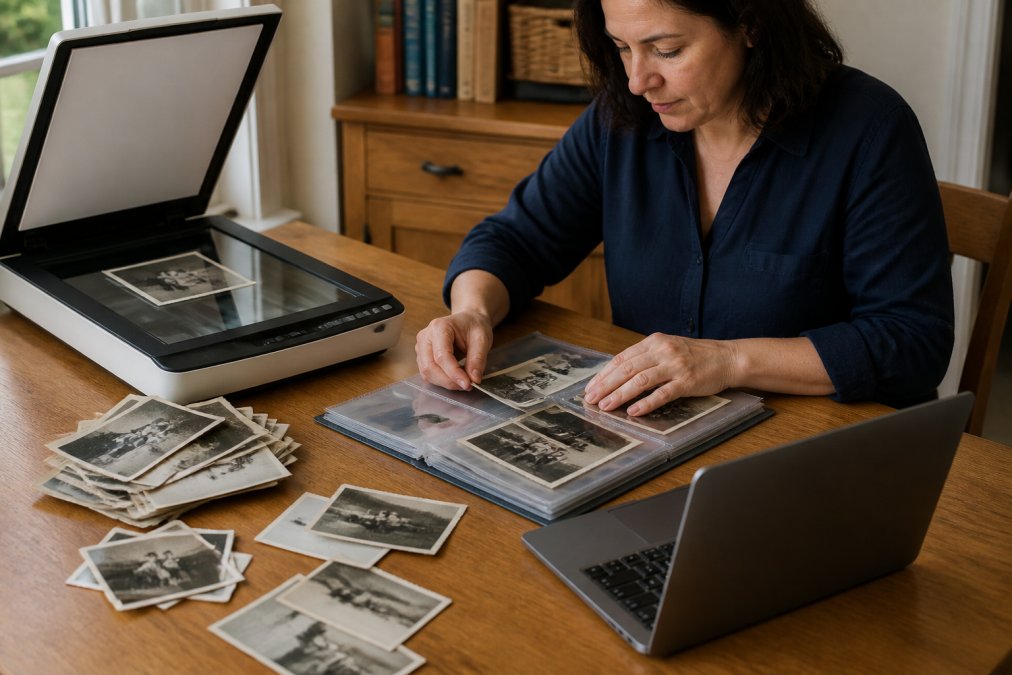
Digitizing old family photos means scanning each print, naming the file with real details, and storing copies in more than one place. The scan is easy; labeling, backup, and handoff are what preserve the memory.
Match the Scanner to the Job
A flatbed scanner handles most prints well. For a large pile, a scanning service saves hours. Either way, scan at a resolution high enough to reprint later, and save as TIFF or high-quality JPEG.
A practical resolution guide:
- 600 ppi for standard 4x6 and 5x7 prints, plenty for reprints and enlargements
- 1200 ppi for small prints, slides, and negatives where detail is dense
- 300 ppi is fine for documents and letters, not for photos you may reprint
Batch Processing and Metadata: The Part Everyone Skips
Batch processing means scanning in groups and applying the same labels to a whole set at once. It's the difference between finishing and giving up.
A naming convention that survives decades:
1968-06-grandma-rose-birthday-01.tif1972-12-family-christmas-tucson.tif1985-08-beach-trip-dad-and-uncle-ray.tif
Cloud Backup and Redundancy: The Step Most Family Guides Skip
A scan on one hard drive is one failure away from gone. Here's the backup system that works.
In practice for a family photo archive:
- Copy one: the working folder on your computer or an external drive at home
- Copy two: a second external drive kept in a different room (fire and theft rarely take both)
- Copy three: cloud storage that syncs automatically, or a drive at a relative's house in another town
Make the Archive Findable for the Next Generation
An archive only works if someone else can use it, organize for the heir, not yourself.
- Write a one-page README in the top folder explaining the naming convention, where the off-site copy lives, and what software opens the files.
- Use open formats (TIFF, JPEG, PDF) rather than proprietary ones that may not open in 30 years.
- Keep a printed index of what's in the archive, stored with the physical originals. Paper survives format changes.
- Name folders by decade and year so a stranger can navigate without asking questions.
- Tag people by full name, not nicknames, so a future family historian searching "Rose Whitfield" finds every photo.
Best Photo Storage Solutions for Families: Physical and Digital
The best photo storage solutions for families combine physical and digital storage: physical keepsakes stay visible and touchable, while digital backups protect against fire, flood, and loss.
Physical options:
- Archival photo boxes with acid-free dividers
- Photo albums with acid-free pages
- Negative sleeves for old film strips
- Framed magnet displays for everyday photos
Digital options:
- Cloud storage with automatic phone backup
- An external hard drive kept at home
- A second drive stored somewhere else
Here's a quick comparison to help you choose:
| Storage Type | Best For | Watch Out For |
|---|---|---|
| Cloud storage | Automatic phone backup | Monthly fees add up |
| External hard drive | Large scanned collections | Can fail without warning |
| Photo boxes | Physical prints and negatives | Needs a dry, cool spot |
| Photo albums | Browsing and sharing | Pages can yellow over time |
| Magnet displays | Everyday favorites | Best for small batches |
Redundancy: The 3-2-1 Rule for Digital Backups
The 3-2-1 rule is the simplest backup system that actually protects your photos: three copies, two storage types, one off-site.
Plastic Magnet Photo Frames, 2"x2" →
In practice:
- Copy one: your phone or computer
- Copy two: an external drive at home
- Copy three: cloud storage or a drive at a relative's house
Choosing Photo Albums and Archival Supplies That Last
What to look for:
- Acid-free pages and mounting corners
- Archival quality boxes with tight lids
- Lignin-free paper and cardstock
- Photo boxes that block light and dust
Budget-friendly archival supplies exist too: plain acid-free boxes and paper sleeves cost far less than decorative albums and protect prints just as well. Spend on materials that touch your photos, not ones that only look nice on a shelf.
Decluttering and Curation: How to Decide What to Keep
Curation means keeping photos that carry a story and letting go of the rest. Most families keep ten near-identical shots of the same moment and never look at any. The goal isn't a smaller pile, it's a pile where every photo earns its place.
A Three-Question Test That Ends the Debate
Run every photo through the same three questions. If any answer is no, it goes.
- Does it show a person, place, or moment you'd want to revisit? If you can't name why it matters, it doesn't.
- Is it the best version of that moment? If a sharper or better-framed shot of the same scene exists, this one is a duplicate.
- Would someone in your family recognize why it matters? If the story lives only in your head, the photo is already lost.
The Bucket Method for Large Backlogs
Facing thousands of photos, sorting one at a time stalls out. Use three buckets:
- Keep, goes straight into the archive with a name and date
- Maybe, a single shoebox or folder, revisited once at the end of the project
- Toss, duplicates, blurs, and shots with no story
How AI-Assisted Sorting Tools Speed Up Curation
Modern photo apps use facial recognition and image analysis to do the first pass for you, the biggest time-saver available right now.
What these tools actually do:
- Group near-identical shots into stacks so you pick one from each burst instead of scrolling through all of them
- Flag the sharpest frame in a group using focus and exposure scoring
- Group photos by person using facial recognition, which is invaluable for genealogy projects spanning decades
- Detect duplicates by file hash, catching copies that survived multiple phone upgrades
- Auto-tag scenes like beaches, birthdays, and documents so you can filter by category
How to use them without losing control:
- Treat every suggestion as a first pass, not a final decision. Algorithms don't know that the blurry shot is the only photo of great-grandpa laughing.
- Review the flagged keepers before deleting anything. Auto-culling can toss the imperfect shot that carries the most meaning.
- Export your tags if the app allows it. Tags locked inside one company's app disappear if that app shuts down.
- Run facial recognition on scanned prints too, not just phone photos. It works surprisingly well on clear faces from the 1960s and 1970s.
What to Do With the Toss Pile
Don't delete immediately. Move toss-pile files to a folder named _review for 30 days; if nothing is missed, delete it. For physical prints, offer duplicates to relatives before recycling, someone else's keeper is often your toss.
Building a Photo Display System You'll Actually Maintain
A display system only works if it's easy to update. The goal is a rotating set of favorites, not a wall frozen in 2019.
Maintaining Your Photo Organization System
A maintenance schedule keeps the system from falling apart. Set a recurring reminder and treat it like any household task.
A simple monthly routine:
- Clear new phone photos into the shortlist album
- Print or order the best 10 to 20 shots
- Scan any new physical prints
- Back up the month's files to the cloud and drive
- Swap out two or three photos on display
Conclusion: Make Organizing Family Photo Albums a Habit, Not a Project
The hard part of organizing family photo albums isn't sorting or scanning, it's keeping the system alive after the first push.
Frequently Asked Questions
How do I organize 30 years of family photos without getting overwhelmed?
Break the project into decades or major life events rather than tackling everything at once. Start with one box or one folder, sort by chronological order, and set a 30-minute timer per session. Use the same sorting criteria every time: date, people, or occasion. Digital tools like facial recognition and batch processing speed up the work considerably. The goal is steady progress, not a single marathon weekend.
What is the best way to store physical family photos long-term?
Use acid-free, archival quality photo boxes and negative sleeves stored in a cool, dry place away from direct sunlight. Avoid cardboard shoeboxes and standard plastic bags, which can degrade prints over time. For photos you display, custom photo fridge magnets keep favorites visible without exposing originals to handling. Label every box with dates and names so future generations can identify people and places.
How do I decide which photos to keep and which to discard?
Apply three filters: Is it in focus? Does it show someone or something meaningful? Would you display it or share it? If a photo fails all three, it goes. Keep one or two best shots from each event rather than 40 near-identical frames. For genealogy purposes, keep any photo with identifiable ancestors, even if the quality is poor. Decluttering is about curation, not deletion of memories.
Can I print photos from my phone without ordering hundreds of prints?
Yes. Most phone photo apps let you create favorites albums or use AI-assisted sorting to surface the best shots. Select 10 to 20 images at a time, upload them to a printing service, and order small batches. Custom photo magnets, for example, turn single images into display pieces without committing to a full album. Batch processing keeps costs down and prevents unused prints from piling up.