
Table of Contents
- How to Print Photos from Smartphone: Wireless and App Options
- Best Photo Printing Apps for Your Phone
- How to Print Photos at Home from Phone
- Print Quality vs. File Resolution: What Actually Matters
- Cost-Per-Print Comparison: Home vs. Retail vs. Online
- How to Turn Phone Photos into Magnets
- Paper Types, Finishes, and Privacy Considerations
- Frequently Asked Questions
Last Updated: September 17, 2026
How to Print Photos from Smartphone: Wireless and App Options
Learning how to print photos from smartphone is simpler than most people expect. You have three main paths: print at home over Wi-Fi or Bluetooth, use a dedicated mobile app, or send your order to a retail kiosk for same-day pickup. This guide from Magnet Stars walks through each option, plus the settings that decide whether your print looks sharp or soft.
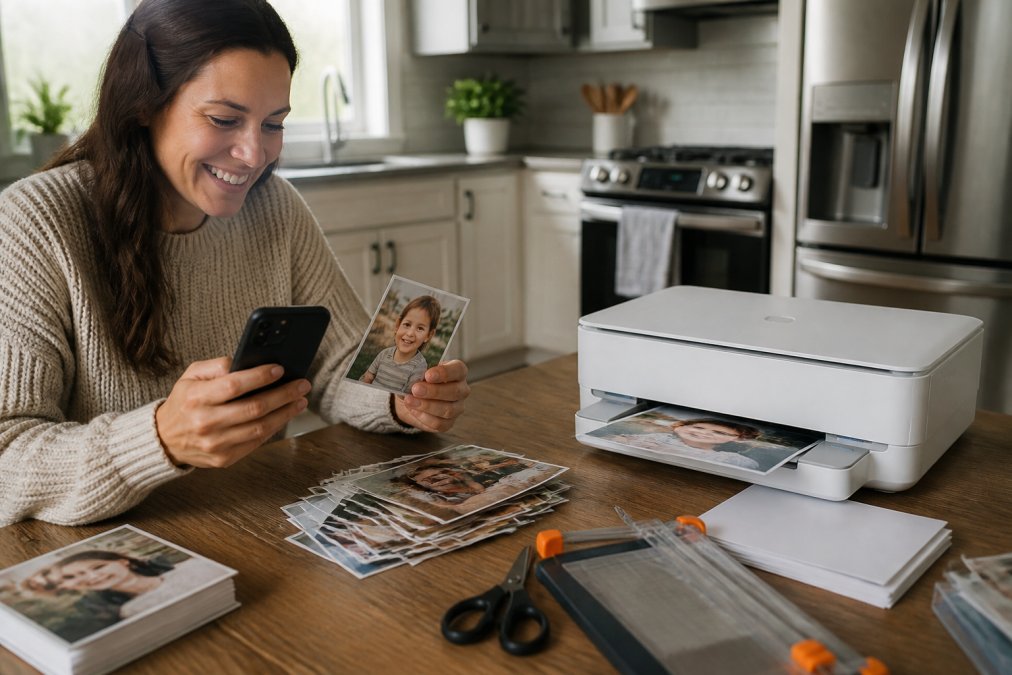
Printing via Wi-Fi and Bluetooth
Wi-Fi gives you the fastest route to a home printer. Connect your phone and printer to the same network, then use your phone's share menu or the printer maker's app to send the file.
A few ground rules:
- Keep both devices on the same network band (2.4 GHz is more reliable for printers)
- Update your printer's firmware before troubleshooting anything else
- Clear a stuck job from the print queue rather than resending it
Using Dedicated Mobile Apps
Dedicated apps give you more control than the basic share menu. You can crop, set orientation, and choose borderless printing before the file ever leaves your phone.
Best Photo Printing Apps for Your Phone
The best photo printing apps split into two groups: retail apps with same-day pickup and dedicated photo printing apps for home printers. Which one you want depends on whether you'd rather pay per print or own the hardware.
Retail Apps with Same-Day Pickup
Retail apps shine when you need prints today. Upload from your gallery app, choose your size and finish, and collect the order within hours. You skip the cost of a printer, ink, and photo paper entirely.
Dedicated Photo Printing Apps
Dedicated apps connect straight to your home printer and hand you the controls. You set paper size, orientation, and print quality in one place. Many also support cloud print, so you can send a job from anywhere.
| Option | Best For | Setup Effort | Ongoing Cost |
|---|---|---|---|
| Wi-Fi printing | Home batches | Medium | Ink and paper |
| Bluetooth printing | One or two prints | Low | Ink and paper |
| Retail app pickup | Same-day prints | Low | Per-print pricing |
| Cloud print | Printing remotely | Medium | Ink and paper |
How to Print Photos at Home from Phone
Home printing comes down to four steps: connect, select, adjust settings, and send. Get the settings right and the rest is routine.
- Connect your phone to the printer over Wi-Fi or Bluetooth
- Open your gallery app and select the photo
- Tap share or print, then choose your printer
- Set paper size, orientation, and quality
- Confirm and collect the print from the paper tray
Adjusting Print Settings and Paper Size
Paper size and aspect ratio cause most home printing problems. Phone photos are often shot in a tall format, while standard photo paper is wider. That mismatch forces a crop.
Before you print:
- Match the paper size in the app to the paper actually loaded in the tray
- Check the aspect ratio so faces don't get cut off
- Choose borderless printing if you want an edge-to-edge look
- Set quality to the highest setting your paper supports
Common Mistakes to Avoid
A common mistake is printing from a screenshot instead of the original file. Screenshots carry lower resolution and often include interface clutter.
Other frequent errors:
- Leaving the default paper size selected when the tray holds something else
- Printing a HEIC file through an app that only reads JPEG
- Ignoring the color profile, which shifts skin tones
- Resending a job that's stuck in the print queue instead of clearing it
Print Quality vs. File Resolution: What Actually Matters
Print quality is decided before you ever hit print. The printer is rarely the weak link, the file is. Here's how resolution actually works and how to check yours in under a minute.
DPI, pixels, and the 300 rule
DPI stands for dots per inch. It describes how densely a printer lays down ink, but what matters for your photo is the pixels per inch (PPI) of the file at its final print size.
| Print size | Minimum pixels (300 PPI) |
|---|---|
| 4x6 in | 1200 x 1800 |
| 5x7 in | 1500 x 2100 |
| 8x10 in | 2400 x 3000 |
| 11x14 in | 3300 x 4200 |
How to check your file's resolution on a phone
You don't need a computer. On most phones:
- iPhone: open the photo, tap the info button (or swipe up), and read the dimensions in pixels
- Android: open the photo in Google Photos, tap the three-dot menu, then Details, and read the resolution
Once you have the pixel dimensions, divide the long edge by the long edge of your intended print size. A 4032-pixel-wide photo divided by 10 inches gives about 403 PPI, comfortably sharp. A 1920-pixel-wide photo divided by 10 inches gives 192 PPI, visibly soft at that size.
Aspect ratio: the other half of the problem
Phone cameras shoot in a tall format (often 4:3 or 3:2), while standard photo paper is wider. That mismatch forces a crop, and the crop is where faces get cut off and compositions fall apart.
Before printing:
- Check the aspect ratio of the file against the paper size
- Decide whether you want a crop or a border, borderless printing forces the crop
- For portraits, crop deliberately rather than letting the app auto-center
What to do when the file falls short
If your photo doesn't have enough pixels for the size you want, you have three options:
- Print smaller. Dropping from 8x10 to 5x7 often solves it entirely.
- Accept a softer print. At normal viewing distance, mild softness is often invisible.
- Use an upscaling tool. Modern AI upscalers can add pixels convincingly, but results vary and can introduce artifacts on faces.
Why the printer matters less than you think
A mid-range inkjet and a high-end one produce surprisingly similar results from the same well-resolved file. The difference shows up in speed, ink cost, and paper handling, not in the sharpness of a 4x6. Spend your effort on the file, not the spec sheet.
Cost-Per-Print Comparison: Home vs. Retail vs. Online
Cost per print is the single biggest factor in choosing how to print, and almost no guide breaks it down honestly. Here's the framework, with the cost categories that actually move the number.
What you're really paying for
Home printing has three cost layers:
- Hardware: the printer itself, typically $60-$250 for a photo-capable inkjet
- Consumables: ink cartridges and photo paper, which is where the real money goes
- Waste: clogged nozzles, misprints, and test sheets
Retail kiosk or app pickup collapses all three into one per-print price. You pay for the print, not the machine.
The break-even logic
The honest math: a home inkjet only wins if you print enough volume to amortize the hardware and avoid wasting ink on clogs. Most practitioners find that occasional printers, a few dozen prints a year, come out ahead at retail, while anyone printing monthly or more usually beats retail at home once the printer is paid off.
Three variables decide which side you land on:
- Volume, how many prints per year, honestly counted
- Size mix, 4x6 prints are cheap everywhere; 8x10 and larger swing the math hard toward retail
- Ink discipline, if you let a home printer sit for months, the first print back often costs more in cleaning cycles than the print itself
Where the hidden costs hide
- Ink yield claims are measured under ideal conditions. Real-world photo printing uses more ink per sheet than the box suggests.
- Photo paper is not optional for good results. Plain paper prints look flat and smudge.
- Retail shipping on mail-order orders can erase the per-print savings on small batches.
- Sales and bulk pricing at retail apps routinely beat home printing on 4x6, which is why so many people use both: home for large format, retail for snapshots.
The hybrid approach most people land on
The pattern that shows up again and again: keep a home printer for convenience and large-format prints, and use retail or online labs for bulk 4x6 orders and anything you want on specialty paper. You get the per-print savings where they're biggest and the convenience where it matters.
How to Turn Phone Photos into Magnets
Turning phone photos into magnets is the easiest way to actually display the pictures you love. Instead of sitting in a camera roll, they end up on the fridge where the whole family sees them.
Paper Types, Finishes, and Privacy Considerations
Paper choice changes how a photo feels in your hand. Glossy finish gives deep contrast and vivid color, which suits bright family shots. Matte finish cuts glare and hides fingerprints, so it holds up better on a fridge.
- Glossy finish: vivid color, shows fingerprints
- Matte finish: soft look, resists glare
- Heavyweight paper: sturdier, less curling
- Cloud services: confirm how long files are stored
Frequently Asked Questions
Where is the best place to print photos from your phone?
The best place depends on your priorities. For instant results, a home inkjet printer with photo paper works well. For professional quality without buying equipment, retail stores with same-day pickup and online services that mail prints are solid choices. If you want to display photos as keepsakes, custom magnet services turn your digital images into fridge-ready decor. Each option balances cost, convenience, and quality differently.
What are the best photo printing apps for a smartphone?
The best photo printing apps depend on whether you want home printing or retail pickup. For home use, apps that connect directly to your wireless printer let you adjust paper size, orientation, and borderless settings. For retail, apps from major stores offer same-day pickup and in-store kiosks. For keepsakes, custom magnet services provide a simple upload-and-order process. Look for apps that support JPEG and HEIC files and let you crop to the correct aspect ratio before printing.
How do I ensure my smartphone photos look good when printed?
Start with a high-resolution file. Photos taken at 300 DPI or higher at the intended print size will look sharp. Avoid cropping too aggressively, as this lowers effective resolution. Choose the right paper type: glossy finish for vibrant colors, matte finish for a softer look. Check your print settings for paper size and orientation before hitting print. If using a retail kiosk, preview the image on screen to catch any issues before finalizing.
Can I print photos from my phone at local retail stores?
Yes, many retail stores offer photo printing from your phone. You can use their mobile app to upload images, select size and finish, and choose same-day pickup at a nearby location. Some stores also have in-store kiosks where you can connect your phone via Bluetooth or USB. This option is convenient when you need prints quickly and don't want to maintain a home printer. Check the store's app for available paper types and finishes.
Printing photos from your phone should be easy, but picking the shots worth keeping is the real challenge. Magnet Stars makes that part simple: choose your favorites, pick a style, and we turn them into custom fridge magnets that ship to your door in days. With glossy metal, puzzle, and plastic frame options, free shipping over $50, and over 12,000 magnets shipped from real family photos, there's a style for every memory. Start my order and give those hidden photos a place to live.