
Table of Contents
- Build a Folder Structure That Works for Your Digital Photo Library
- Create a Digital Photo Organization Workflow You'll Actually Follow
- How to Declutter Your Digital Photo Library Without Losing Memories
- Use Metadata and Tagging to Find Any Photo in Seconds
- Choose the Right Storage: Cloud, External Drive, and the 3-2-1 Backup Strategy
- Automate Your Digital Photo Library with AI Sorting Tools
- How to Print Photos from Your Phone and Display Them at Home
- Frequently Asked Questions
Last Updated: September 23, 2026
Build a Folder Structure That Works for Your Digital Photo Library
The most effective folder structure for a digital photo library is a simple hierarchy organized by year, then month, then event. This three-level approach keeps files findable without creating so many subfolders that navigation becomes a chore.
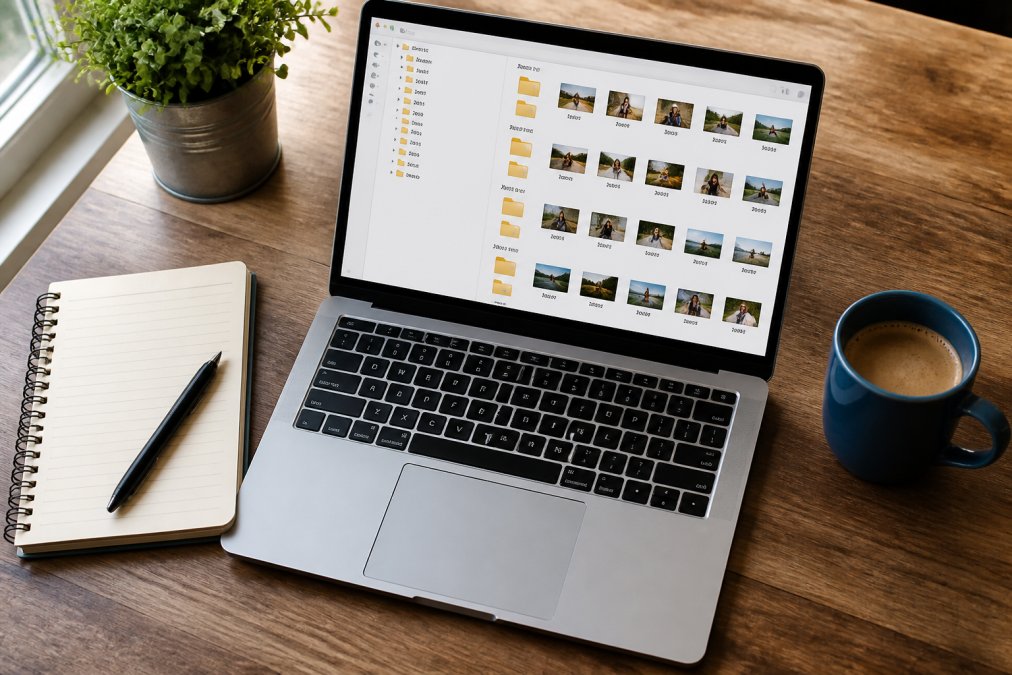
Here's the framework that works for most families:
-
Year folder:
2026 -
Month folder:
2026/03-March -
Event folder:
2026/03-March/Spring-Break
Create a Digital Photo Organization Workflow You'll Actually Follow
- Import, don't sync. Connect your phone by cable or use your operating system's built-in importer (Photos on macOS, Photos app on Windows, or a tool like Image Capture). Importing copies files and lets you delete from the phone afterward; cloud sync mirrors deletions in both directions, which is how people lose photos.
-
Let the importer sort by capture date. Every modern importer reads the EXIF date and can file photos into
Year/Monthfolders automatically. You are only renaming the event folder afterward. - Cull in one pass. Delete blurry frames, screenshots you don't need, and obvious duplicates. Do not stop to edit, editing is a separate session.
-
Rename the event folder.
2026/03-March/Spring-BreakbeatsIMG_4821every time. - Run the backup before you close the laptop. If the backup is the last step, it actually happens.
- Sweep the inbox. Any photo sitting in Downloads, Messages, or a shared album gets filed or deleted.
- Tag the month's keepers. Add people, places, and event tags while the memories are fresh, you will not remember the context in three years.
- Verify the backup. Open your cloud app and confirm the last upload completed. A backup you have not checked is a hope, not a backup.
- Empty the "Review" folder from last month (see the decluttering section).
- Check storage headroom. If your drive is above roughly 90% full, plan an archive move before it fills.
A few mechanics that make the whole system stick:
- Keep a single "inbox" folder at the top of your library. New imports land there, and the weekly routine empties it. One inbox is manageable; five scattered download folders are not.
- Never edit in the library folder. Export a copy, edit it, and re-import the finished file. Editing originals in place is how people overwrite the only version of a photo.
- Write the routine down. A one-page checklist taped inside a cabinet beats a system that lives only in your head.
How to Declutter Your Digital Photo Library Without Losing Memories
Decluttering a digital photo library means removing duplicates, blurry shots, and near-identical burst photos while keeping at least one strong version of every memory. The goal isn't a smaller library, it's a library where every photo earns its place.
Use Metadata and Tagging to Find Any Photo in Seconds
Metadata is the hidden information stored inside every photo file, including the date, camera settings, and often the location. Tagging adds your own labels on top, such as names, events, or keywords, so you can search by meaning instead of scrolling.
The most useful tags for families:
- People: Names of family members
- Places: Home, Grandma's house, vacation spots
- Events: Birthdays, holidays, milestones
- Keywords: "First day of school," "beach trip"
Choose the Right Storage: Cloud, External Drive, and the 3-2-1 Backup Strategy
The 3-2-1 backup strategy is the gold standard for protecting photos: keep three copies of your data, on two different types of media, with one copy stored offsite. For a photo library, that typically means your computer (copy 1), an external hard drive (copy 2), and a cloud service (copy 3, offsite).
A concrete 3-2-1 setup for a family library:
- Primary copy, your computer's internal drive. This is where you edit and sort. It is also the copy most likely to fail, which is why it is never the only one.
- Local copy, an external desktop hard drive. Desktop drives (the kind with their own power supply) generally last longer and hold more than portable drives. Keep it plugged in and let backup software run on a schedule, or plug it in weekly and run a manual sync. Store it somewhere other than on top of the computer.
- Offsite copy, a cloud service or a second drive kept at another address. Cloud is the low-effort option. A rotated external drive kept at a relative's house is the no-subscription option, but it only works if you actually swap it on a schedule.
Cloud vs. external drive, the real trade-offs:
| Storage Type | Best For | Trade-off |
|---|---|---|
| Cloud storage | Automatic offsite backup, access from any device | Recurring subscription, upload time on large libraries, privacy depends on the provider |
| External hard drive | Large libraries, one-time cost, fast local access | Can fail without warning, needs manual backup, vulnerable to theft or fire if kept in one place |
| Local computer | Fast editing and sorting | Single point of failure, never the only copy |
| Network-attached storage (NAS) | Households with multiple devices and very large libraries | Higher upfront cost, requires setup and maintenance |
- Encryption in transit vs. at rest. Nearly every major provider encrypts photos while they travel to the server and while they sit on the server. That protects against interception and a stolen disk, but it does not stop the provider itself from accessing your files.
- End-to-end encryption. Some services encrypt files so that only your devices hold the key, meaning the provider cannot view your photos. This is stronger for privacy, but it usually limits features like web search, sharing links, and automatic face grouping, because the server cannot read the images.
Automate Your Digital Photo Library with AI Sorting Tools
AI sorting tools can automatically group photos by faces, scenes, and dates, cutting hours of manual work down to minutes. This is the biggest shift in photo organization over the past few years, and most guides still ignore it.
How to Print Photos from Your Phone and Display Them at Home
Printing photos from your phone is straightforward once you pick a format and a display method. The most rewarding approach for families is turning favorites into physical keepsakes you see every day, not files buried in an app.
- Open your photo app and select your favorites
- Choose a print service or a keepsake product
- Upload and confirm your selection
- Place your order and wait for delivery
Frequently Asked Questions
What is the most efficient way to organize thousands of digital photos?
Start with a year/month folder structure, then add event subfolders for the memories that matter most. Use AI-powered tools to auto-sort by date and face recognition. Delete obvious duplicates and blurry shots before you file anything. Batch rename files with a consistent naming convention. Once your digital photo library has a skeleton, maintenance takes minutes per week instead of hours per year.
Should I organize my photos by date or by event?
Use both. Date-based folders (2026/2026-03) keep things predictable and work with every operating system. Event subfolders inside each month (2026-03-Beach-Trip) add context that dates alone cannot provide. For a digital photo library that spans decades, date-first is the most reliable backbone. Add event tags in your photo app so you can search by occasion without rebuilding your folder hierarchy.
What is the best cloud storage for digital photo libraries?
The right choice depends on your library size, budget, and privacy needs. Look for end-to-end encryption, automatic sync from your phone, and a clear data recovery policy. Most major cloud service providers offer 2TB plans that cover a typical family library. Never rely on one cloud alone. Pair it with a local external hard drive and an offsite copy to satisfy the 3-2-1 backup strategy.
How do I delete duplicate photos efficiently?
Use duplicate detection software that scans by file hash, not just filename. Free tools like dupeGuru and paid options built into photo managers can flag exact copies and near-identical bursts. Review the flagged set before deleting, since some duplicates are intentional edits. Run this cleanup every six months as part of your digital photo organization workflow to keep storage capacity under control.
How often should I back up my digital photo library?
Back up new photos weekly and run a full library backup monthly. If you shoot often, daily automatic cloud synchronization covers the gap. The 3-2-1 backup strategy (three copies, two formats, one offsite) protects against drive failure, theft, and accidental deletion. Test a data recovery restore once a year to confirm your backups actually work before you need them.
What is the best way to display digital photos in my home?
Print the photos you love most and put them where you will see them daily. Refrigerator magnets made from your phone photos turn a hidden camera roll into everyday decor. Choose glossy metal, puzzle, or plastic frame styles to match your kitchen. Start with 10 to 15 favorites from the past year, then rotate seasonally. The goal is to move photos out of the cloud and into your home.
Your phone is holding thousands of memories that nobody ever sees. Turning a handful of favorites into physical keepsakes is the simplest way to fix that, and Magnet Stars makes it effortless with a four-step process, fast shipping, and magnet styles for any photo. Get started with Magnet Stars and give your best family moments a place on the fridge.